Articles in this section
There are 2 ways to create an order on our fulfillment app without connecting to a store: Create an order and Import CSV/excel file
Create order tutorial video
Method 1. Create Order
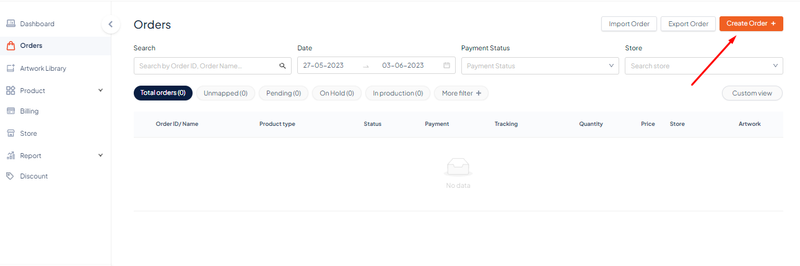
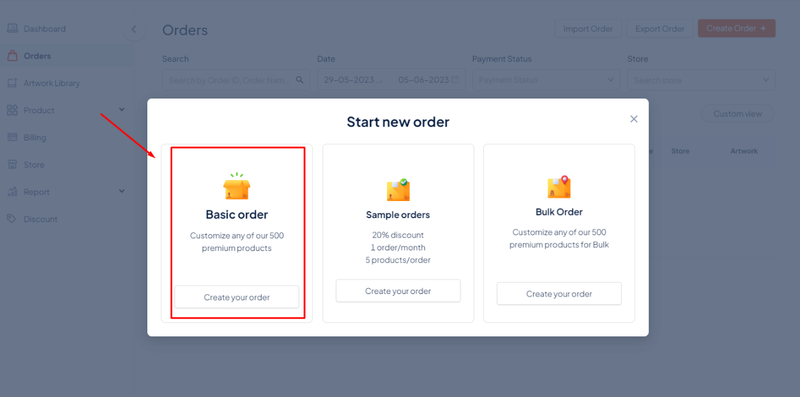
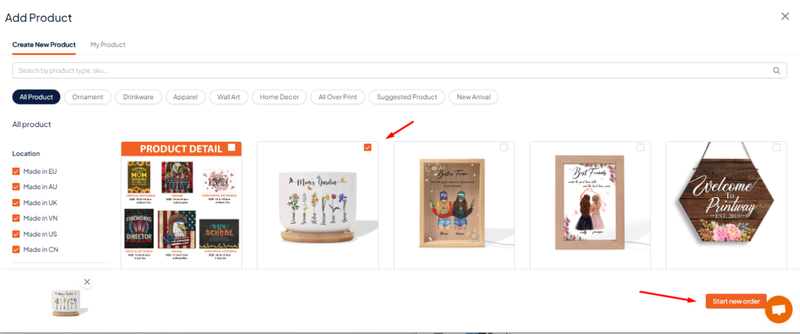
Go to Create Order → Basic Order → select the product to fulfill and choose Start new order
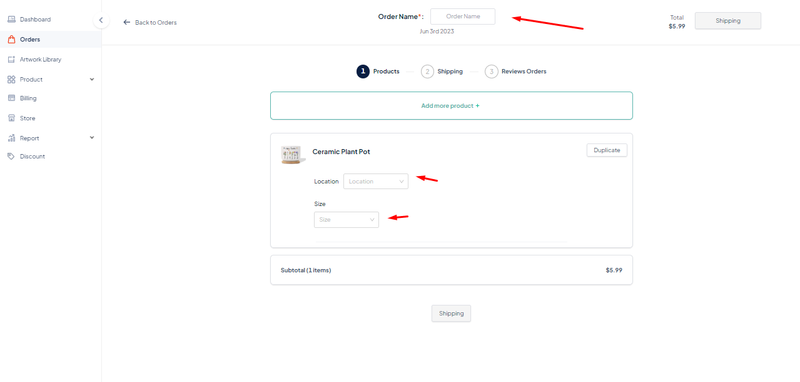
+ Fill in the order name at Order Name, then select the location of the factory you want to place the order at Location and select the product Size
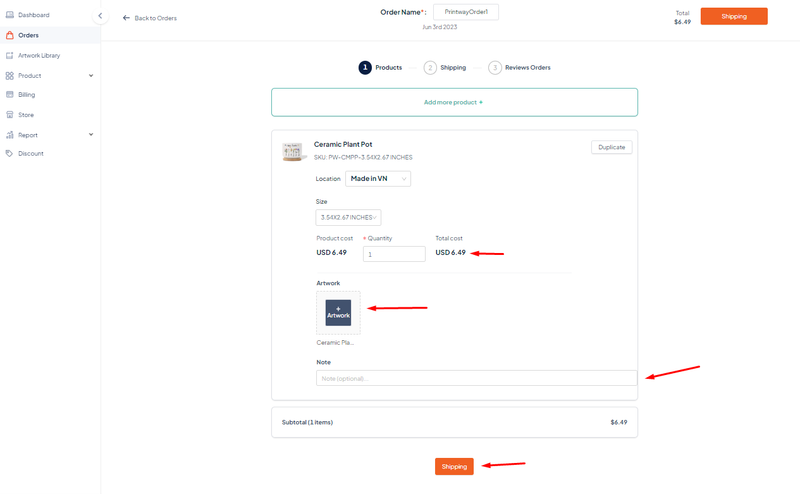
+ Fill in the Quantity to fulfill → upload Artwork file → fill in notes at Note (if any) → Shipping
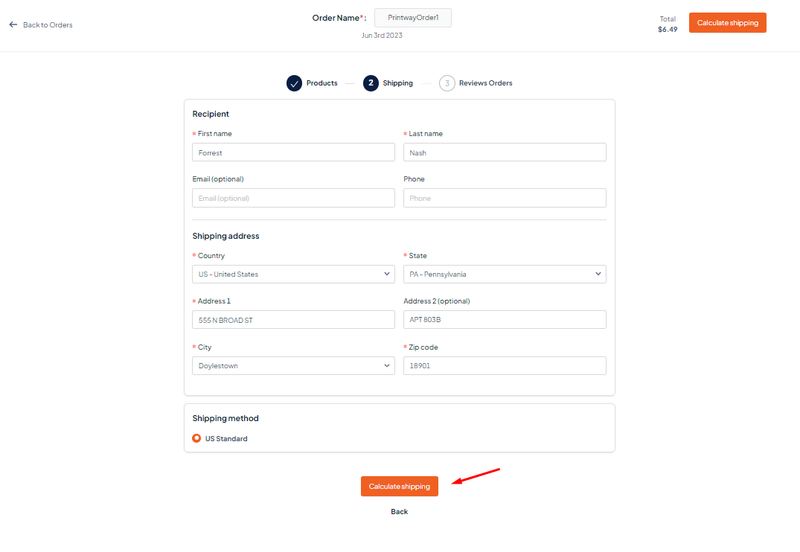
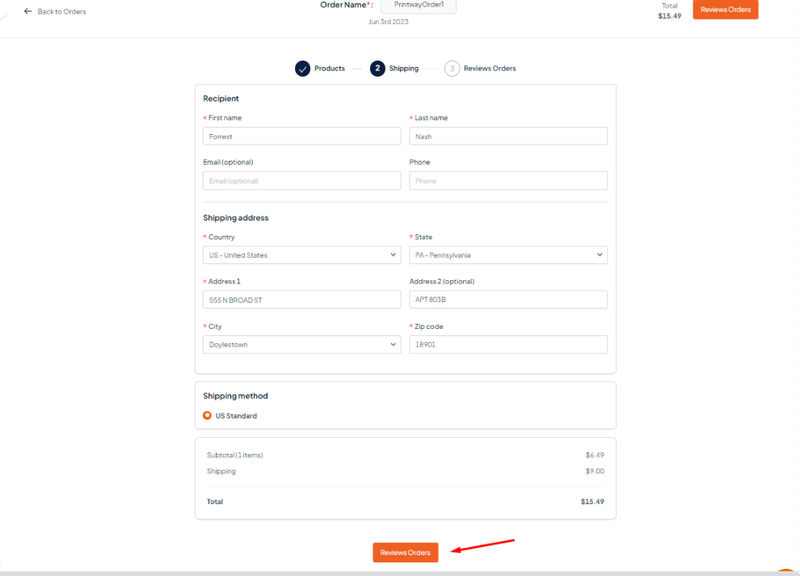
+ Fill in the recipient's information and select Calculate shipping → Review orders → Save Order
Note: In the process of filling in the order information, you can go back to the previous step by clicking on the step name, e.g. Product, Shipping
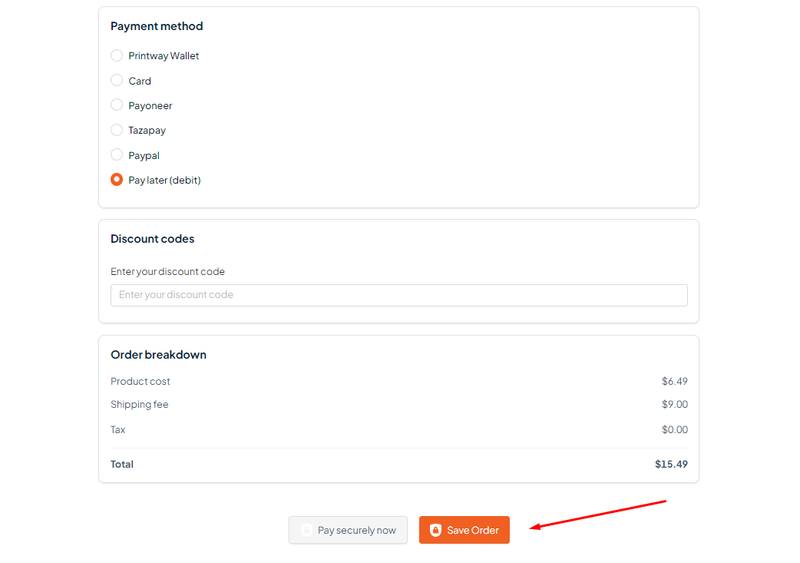
You can choose Pay later or other payment methods depending on your needs during the order creation process.
Method 2. Import Order
Tutorial Video
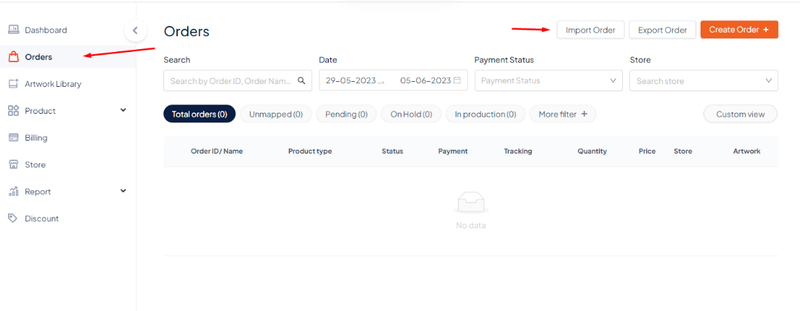
+ Go to Orders → Import Order → Download the xls template file and Product information file to fill in on the Excel import file
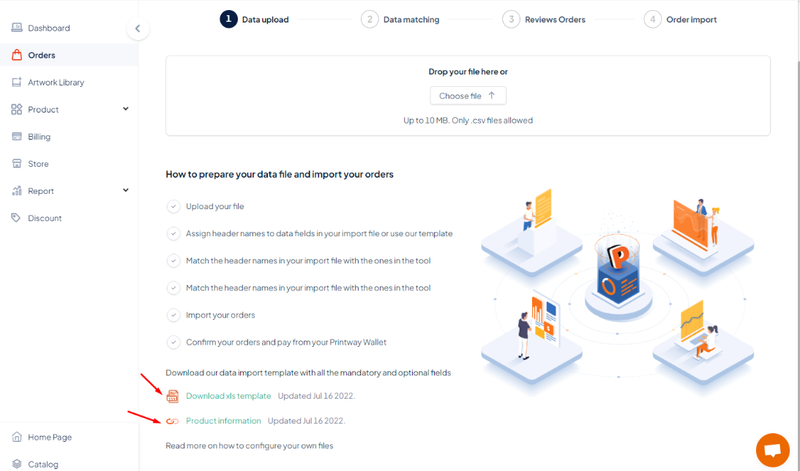
The template is an excel file as shown below. Note: Please fill in the Made_location column before importing the file into the system. In case the Made_location column is left blank, the system will automatically select the appropriate location based on the Country of the application.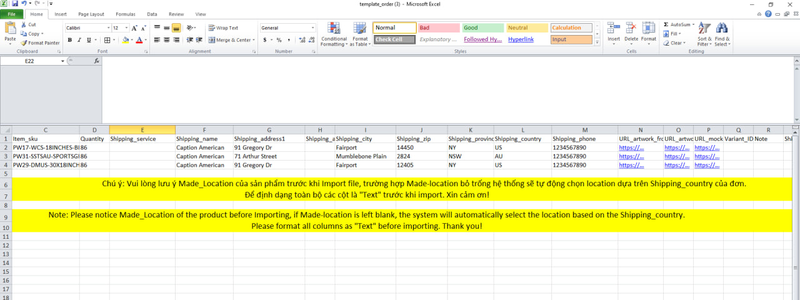
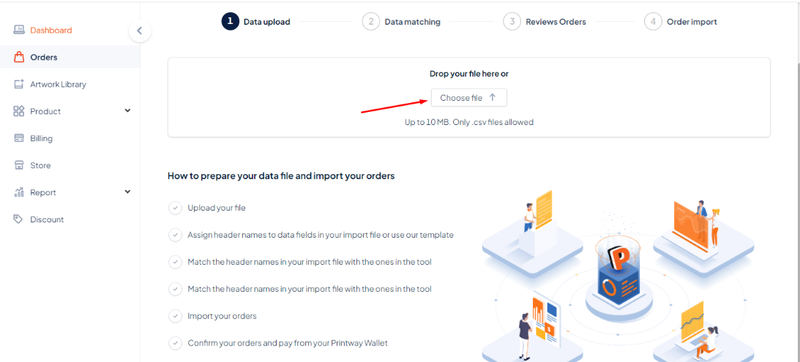
+ After filling in the information on the excel file → select Choose file to upload it from your computer
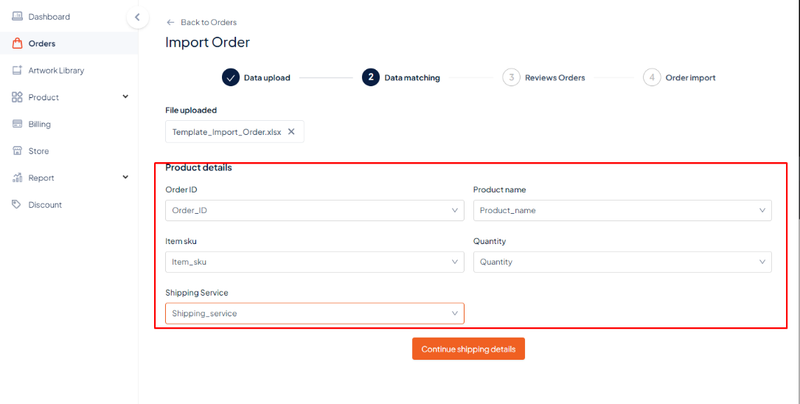
+ Match the information of the columns in the Excel file with the information on the website (e.g. order ID with Order_ID, Quantity with Quantity; Shipping Service with Shipping_Service) → Continue to review orders
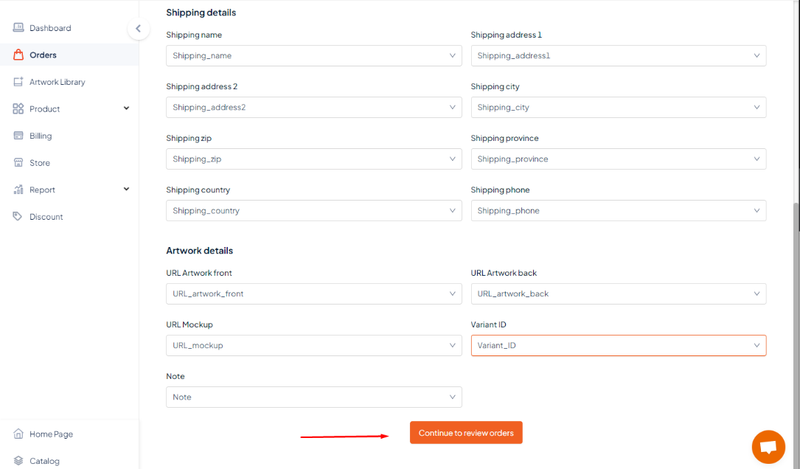
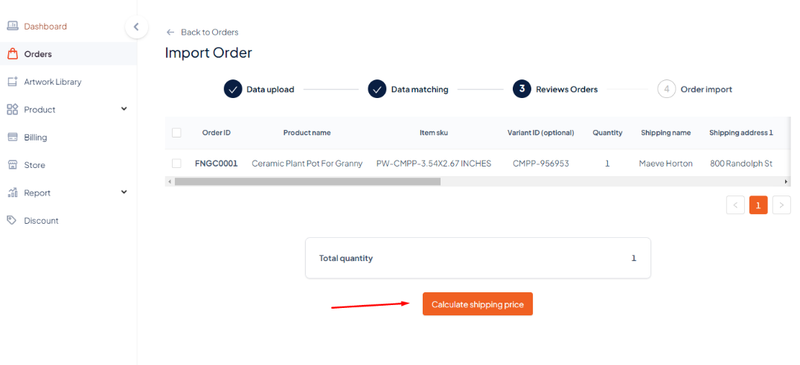
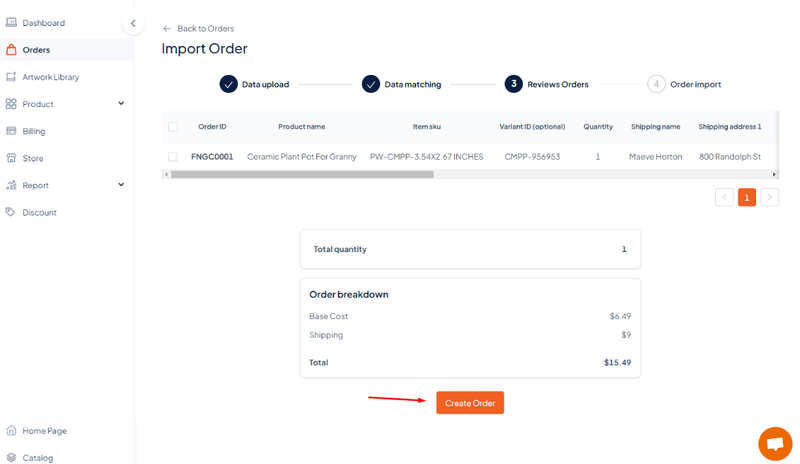
+ Check the order list information → Calculate shipping price → Create Order