Hanh Hoang
Oct 07 2026 •6 minutes
Great news for the seller community: Printway is now an official Walmart Solution Provider. That means you can connect the Printway app directly inside Walmart Seller Center and sync your Walmart store with Printway's fulfillment system in just a few steps.
Becoming an official partner gives sellers three clear benefits: a secure, Walmart-verified connection process; automatic two-way syncing of products and orders between Walmart and Printway; and full handling of printing, production, and shipping by Printway - so you can focus on selling.
This guide walks you through the full four-stage workflow to run your Walmart store with Printway:
To connect smoothly, make sure you have:
Goal: Allow the Printway system to connect to your Walmart store, creating the foundation for syncing products and orders later.
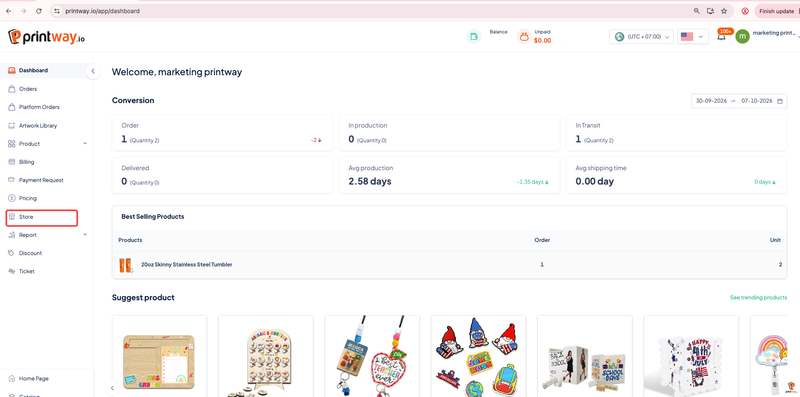
Step 1 - Log in and open the platform connection page: Log into your Printway account. From the menu, go to Store → Connect Platform. This is where you manage every marketplace you want to link to Printway.
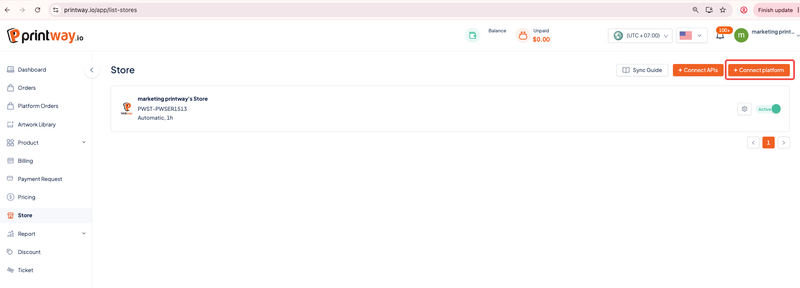
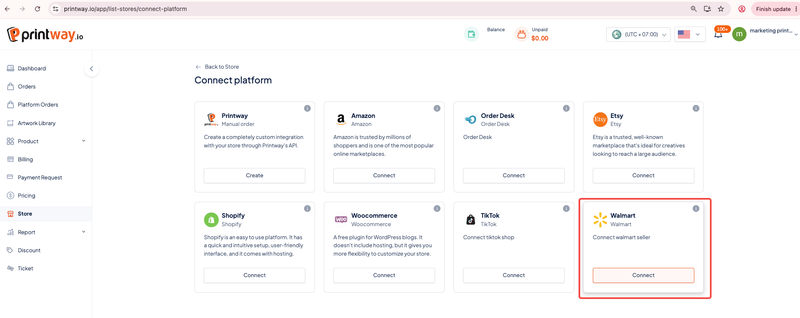
Step 2 - Select Walmart: In the list of platforms, find Walmart and click Connect.
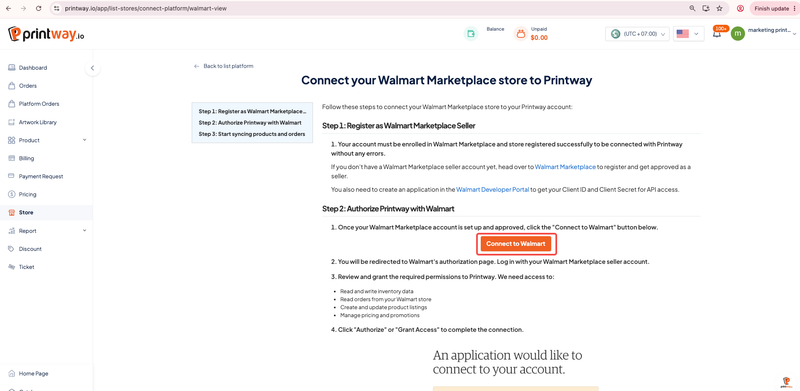
Step 3 - Start the connection: Read the on-screen connection instructions carefully, then click Connect to Walmart to begin the authentication process.
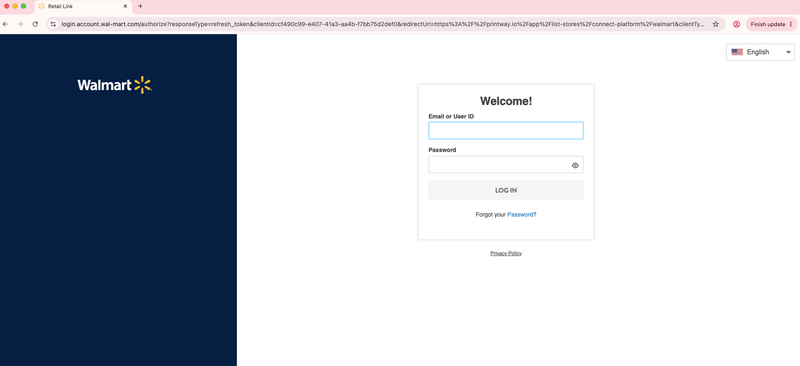
Step 4 - Log into your Walmart account: The system redirects you to Walmart. Enter the Walmart account credentials for the store you want to connect to Printway, then click Log In.
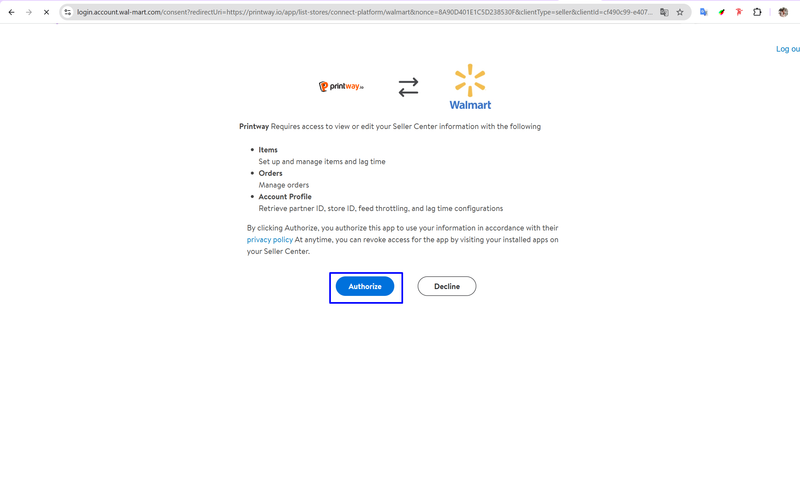
Step 5 - Authorize: Walmart displays a confirmation screen granting Printway access to your store. Review the details and click Authorize to approve the connection.
Step 6 - Connection complete: After you authorize successfully, the system returns you to Printway and displays your newly connected Walmart store in the Store list. Your store is now ready to sync.
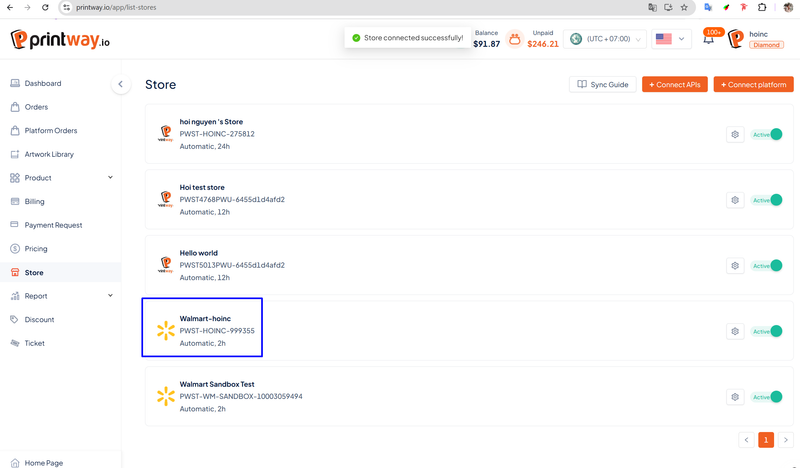
Tip: If the store doesn't appear, refresh the page or double-check that you authorized the correct Walmart account.
Goal: Let you create and publish your own products to the Walmart stores that are active and already connected.
Step 1 - Open the product creation page: From the Printway menu, go to Product → All Product → Create Product.
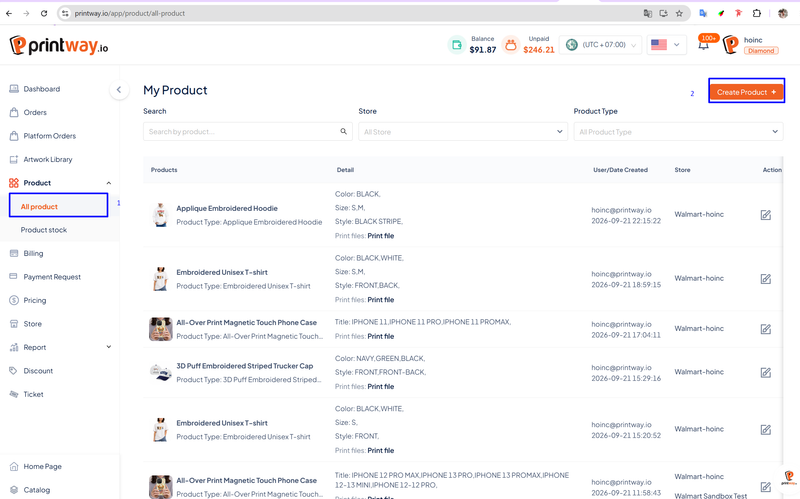
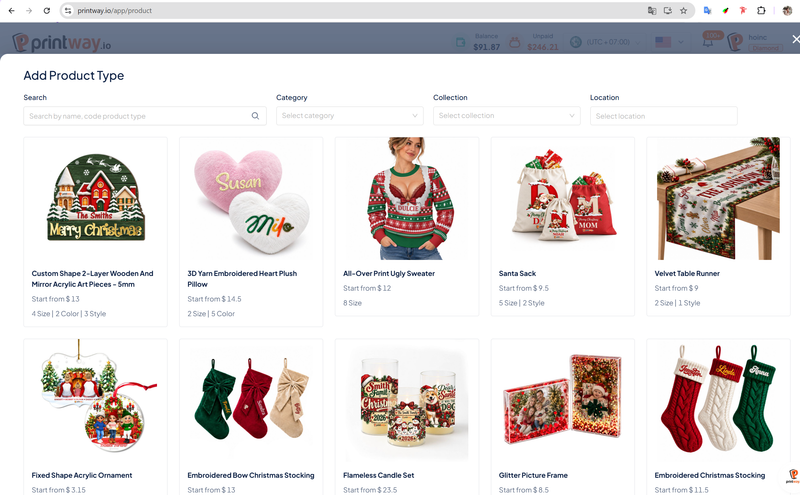
Step 2 - Choose the product you want to sell: Find the product in the Printway catalog that you want to push to Walmart and select it.
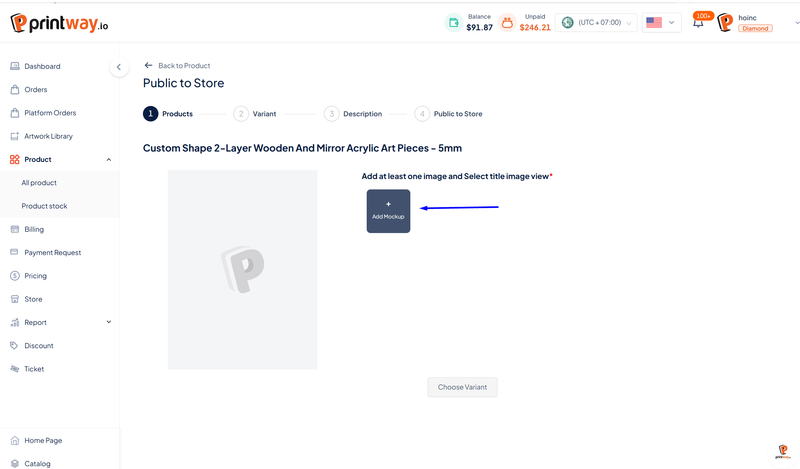
Step 3 - Upload your design: Upload your artwork/design onto the product, then click Choose variant to select variations.
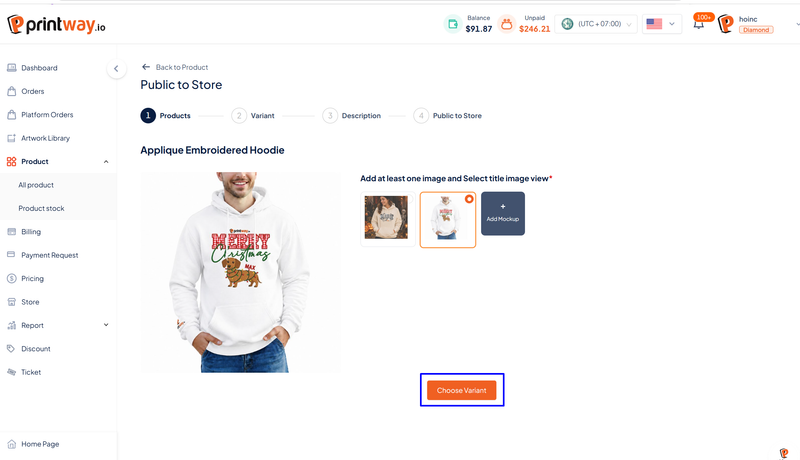
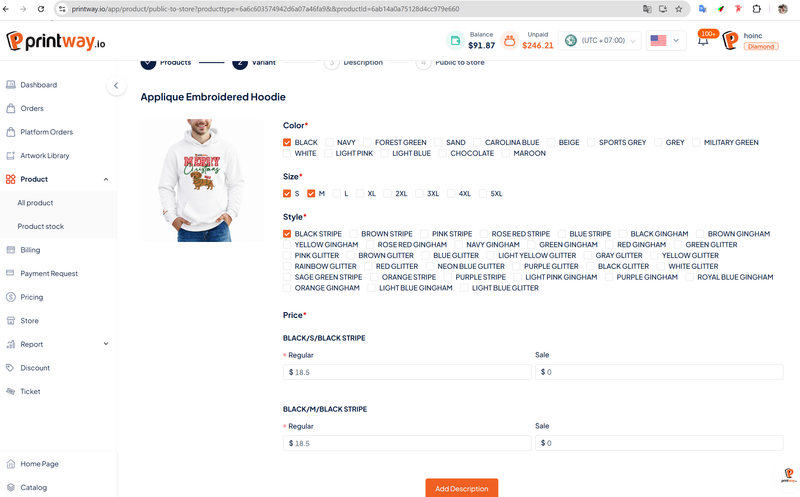
Step 4 - Select variants and set prices: Choose the variants you want to sell (for example, size or color) and enter a selling price for each. Then click Add description to move to the product details step.
Step 5 - Fill in all details and publish Complete the required fields:
Click Publish now.
When finished, the system confirms the product was published successfully.
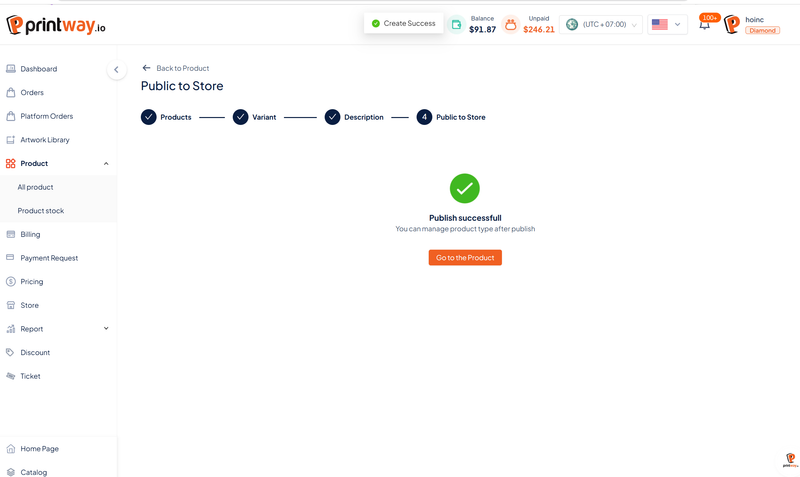
Step 6 - Track product status: Click the product name to view details and monitor its publishing status on Walmart:
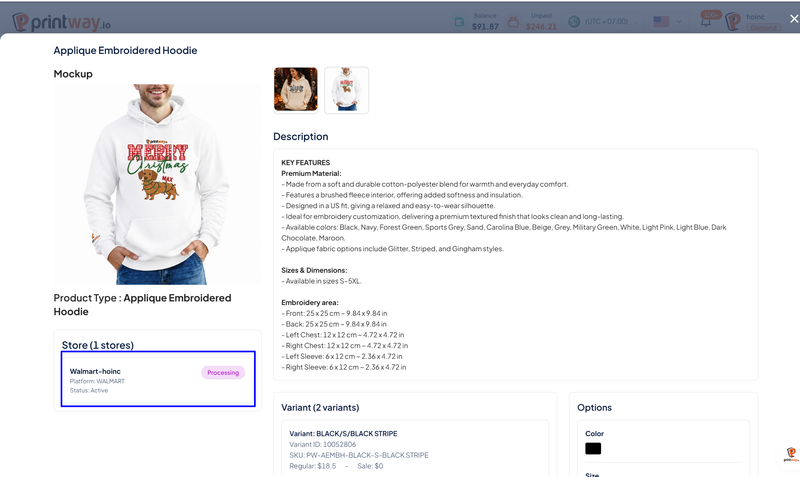
Note: If you see an Error status, read the reason carefully, correct the product information (name, description, images, price, etc.) to meet Walmart's requirements, and republish.
Goal: Map products you already have on Walmart to their matching Printway products. This stage is for products already listed on Walmart that you want Printway to produce and fulfill.
Step 1 - Open your Walmart store: Go to Store, then click your Walmart store name.
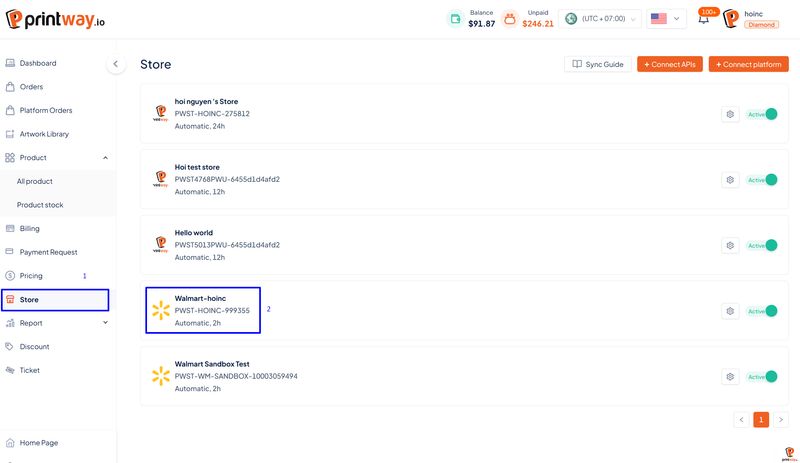
Step 2 - Pull products: Click Pull products. When the pull succeeds, the screen displays the list of products currently on Walmart.
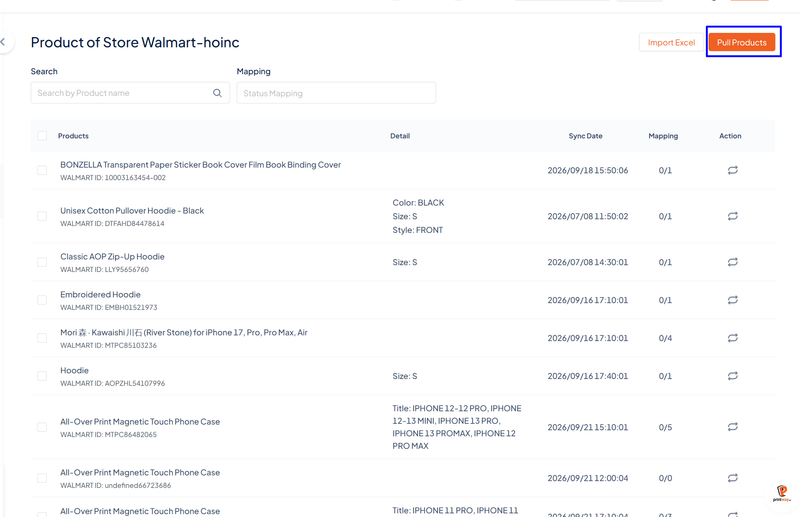
Step 3 - Map the products: For each Walmart product, click Action to start mapping:
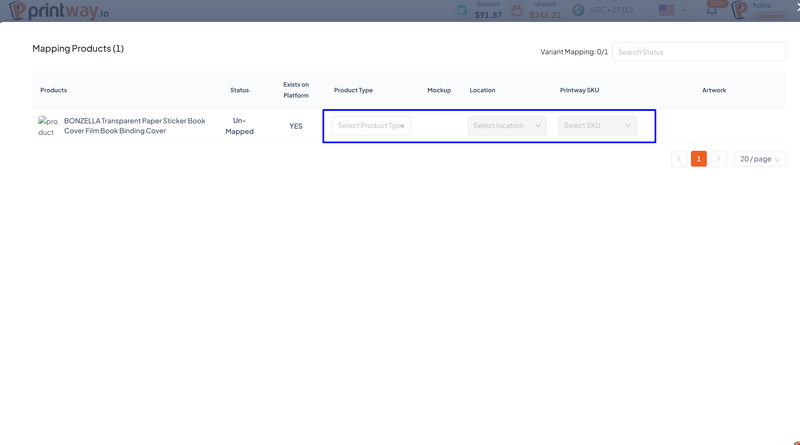
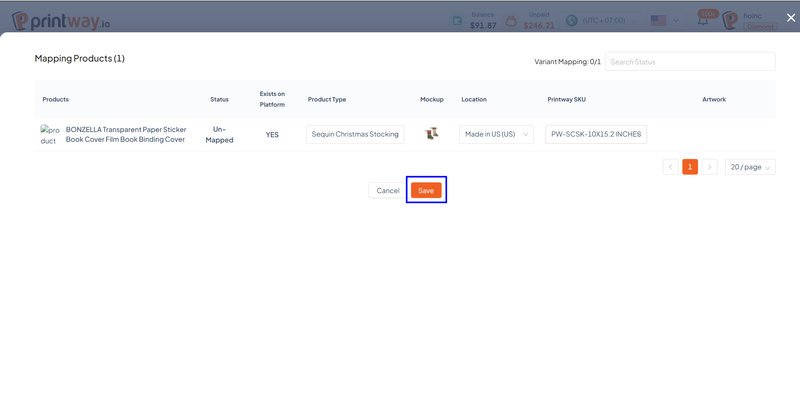
Why map? Mapping tells the system exactly which Printway product to produce when an order comes in for a given Walmart listing - preventing mix-ups and automating fulfillment.
Goal: Sync orders from Walmart into Printway, map them to products, and create production orders.
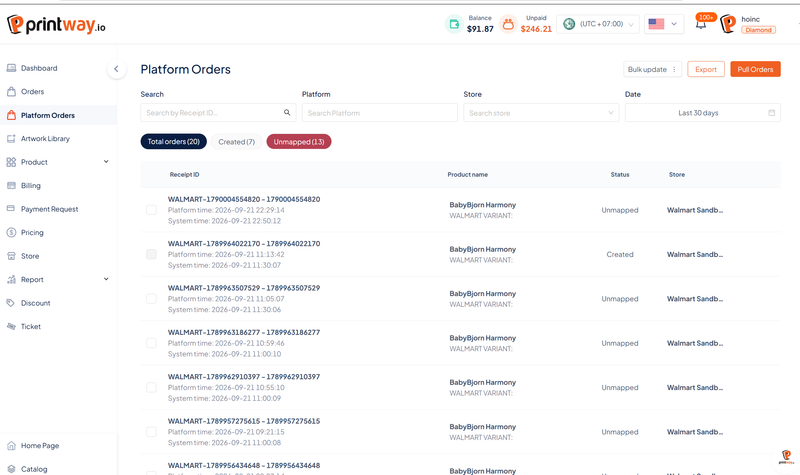
Step 1 - Pull orders: Go to Platform Orders → Pull orders. Select your Walmart account, then click Pull orders. The system confirms the pull succeeded - wait a moment for the orders to finish loading.
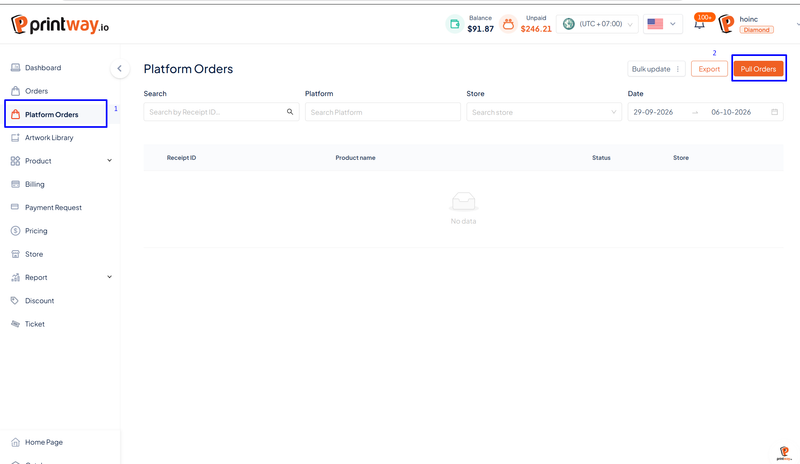
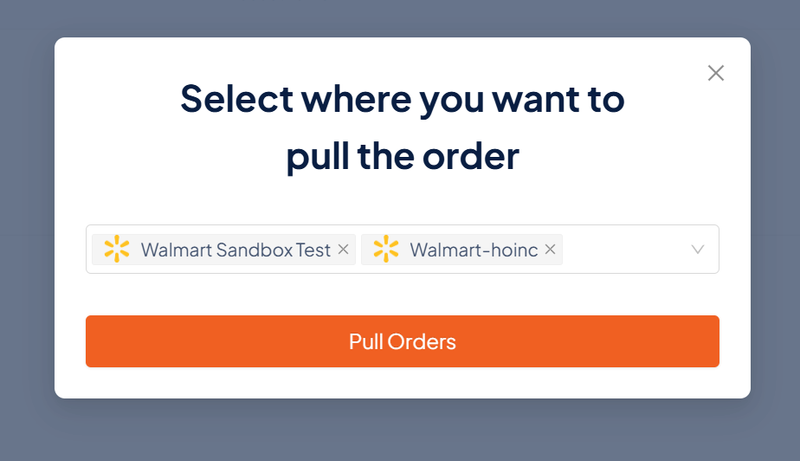
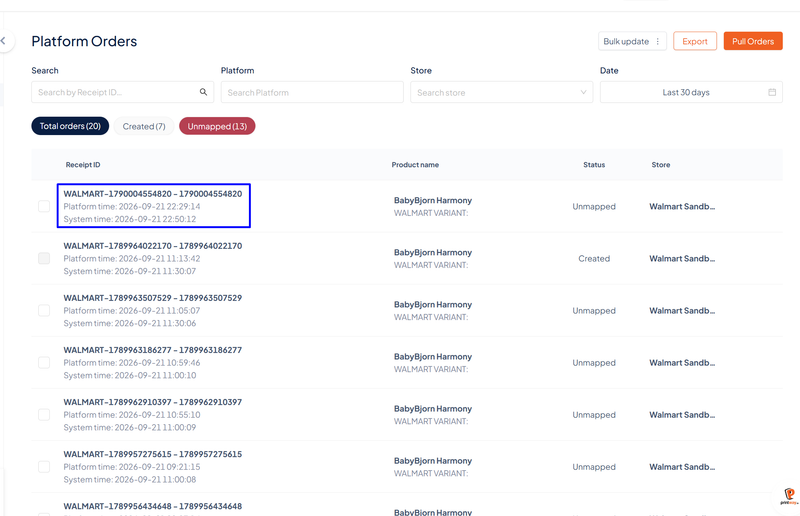
Step 2 - View order details: Click any order; the system displays its details (product, quantity, recipient information, etc.).
Step 3 - Map the product to the order If a product in the order isn't mapped yet, map it now:
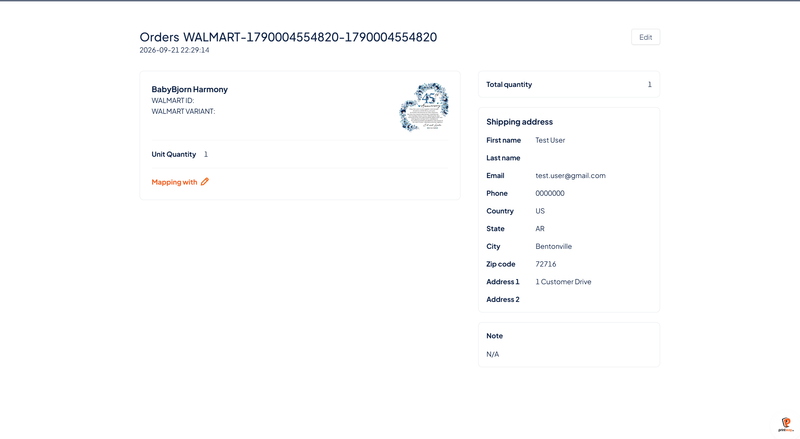
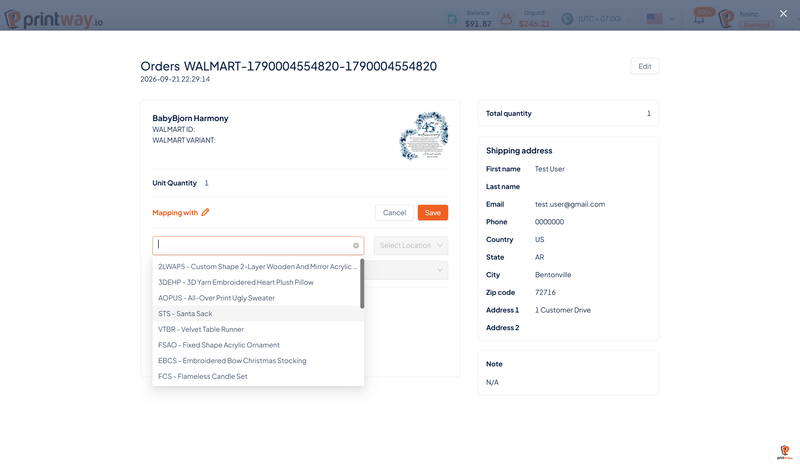
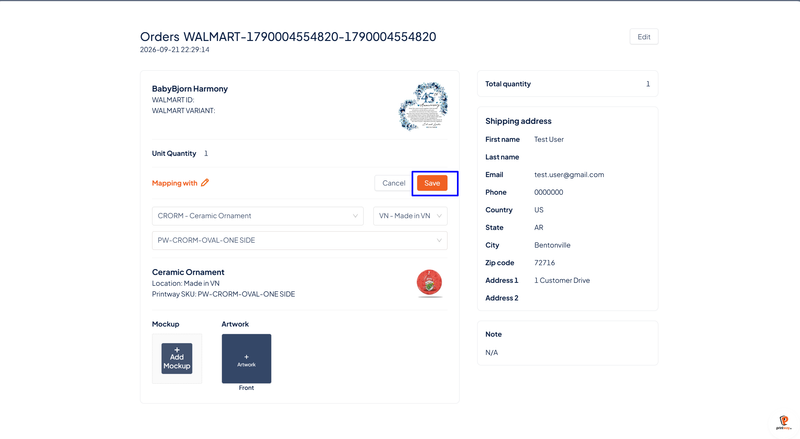
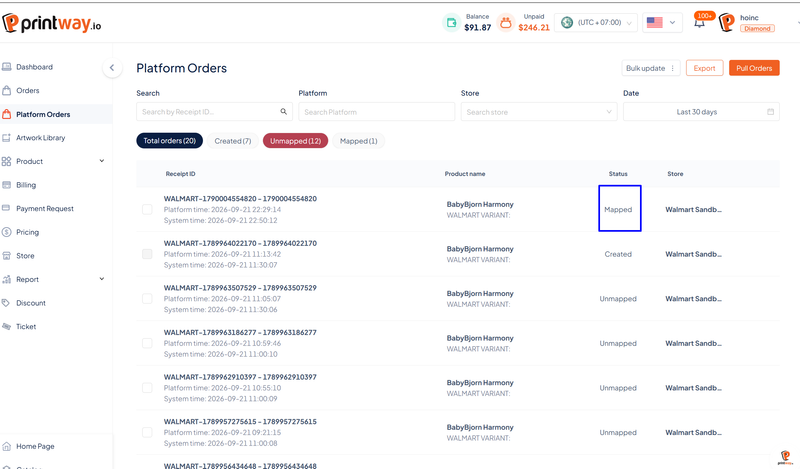
Step 4 - Create the production order: For an order that is Mapped to a Printway product, create the order:
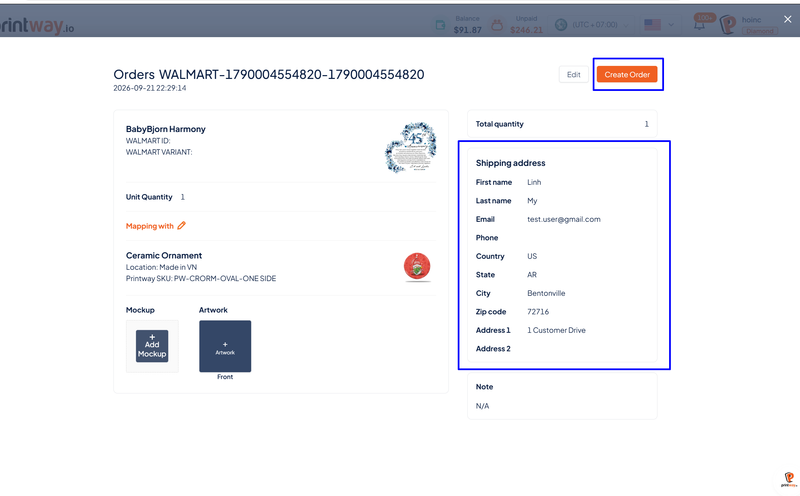
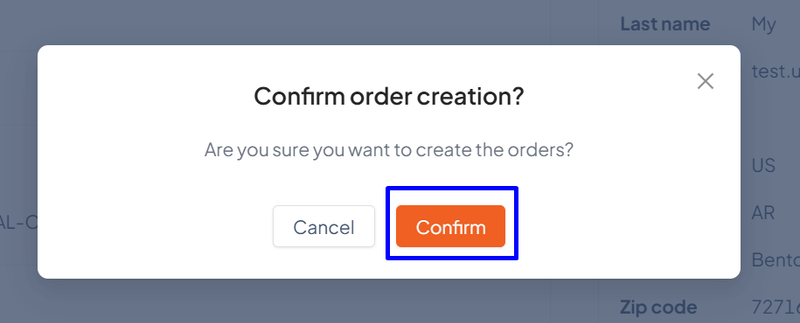
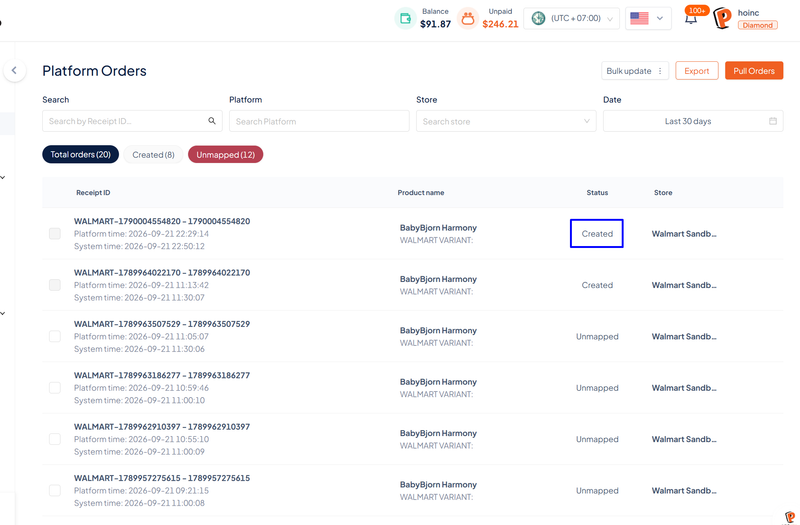
After confirming, you return to the order list and see the order in Created status.
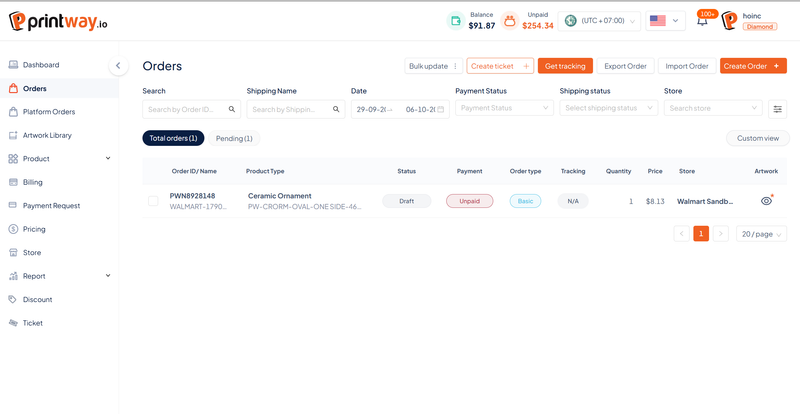
Step 5 - Verify the created order: Click Order to verify the order was created successfully and linked to your Walmart store. From here, Printway takes over production and fulfillment.
Product statuses when pushing to Walmart
| Status | Meaning |
| Processing | Waiting for Walmart approval |
| Published | Approved and live on Walmart |
| Error | An error occurred - check the attached reason to fix it |
Statuses during mapping & order processing
| Status | Meaning |
| Mapped | Product/order is linked to a Printway product |
| Created | Order was created successfully and moved to production |
Always make sure your Walmart Seller Center account is active and that you have permission to authorize third-party apps before connecting. When pushing products, fill in the Name and Description to Walmart's standards to reduce the chance of an Error status. Before clicking Create order, carefully verify the recipient's address - this is the most common slip when processing orders. Finally, complete mapping for both products and orders so the entire fulfillment workflow runs automatically without interruption.
Now that Printway is an official Walmart Solution Provider, expanding your business onto one of the largest marketplaces in the US has never been easier. In just four stages - connect, push products, map, and sync orders - you get a fully automated Walmart selling workflow, with printing and shipping handled entirely by Printway.
Connect the Printway app inside Walmart Seller Center today and start putting your products in front of millions of Walmart shoppers.