Hanh Hoang
Apr 16 2026 •13 minutes
TikTok isn’t just a place for viral dances anymore-it’s one of the fastest-growing sales channels for eCommerce. If you’re in print on demand (POD), this platform can help you go from zero to thousands of orders with the right strategy.
In this guide, you’ll learn exactly how to sell print on demand on TikTok, from setting up your store to creating viral content that converts.
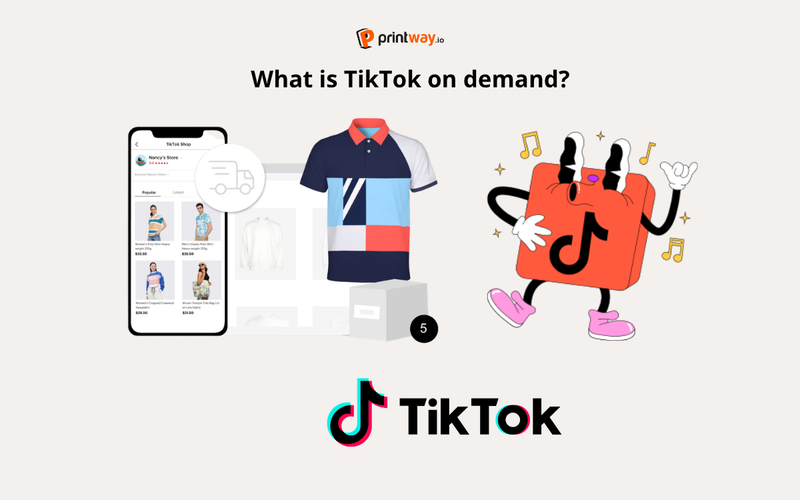
TikTok print on demand (POD) is a business model where you sell custom-designed products-like t-shirts, hoodies, mugs, or posters-directly through TikTok without holding inventory.
Instead of buying stock upfront, TikTok POD works like this
This lets you focus on content and marketing, while your fulfillment partner handles production, packing, and logistics-cutting inventory risk and startup costs.
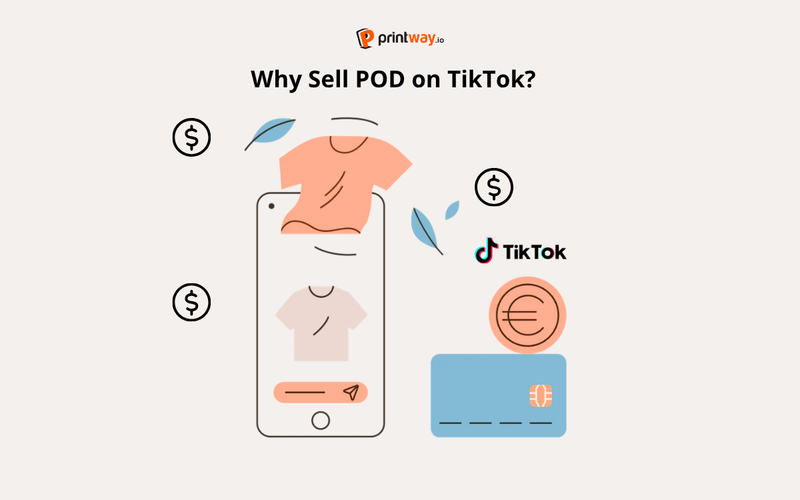
Since TikTok (TikTok Shop) allows people to create selling stores online, it has become a "big player" in the ecommerce market. With the combination of TikTok Shop with Print-on-demand apps, ecommerce sellers now have a bigger chance to reach global consumers.
Unlike many platforms, TikTok still gives new accounts a real chance to go viral even with zero followers, as long as the content keeps people watching.
That means new POD sellers can get visibility and sales without heavy upfront ad spend.
Short-form video hits emotions fast-relatability, humor, “this is so me”-and that’s exactly what triggers impulse purchases.
Since POD products are often about identity and expression, TikTok’s format is perfect for turning designs into emotional “must-buy” moments.
TikTok Shop lets you:
Less friction = higher conversion rates.
POD thrives on trends, memes, and niche communities (pet parents, teachers, gamers, nurses, fandoms…). TikTok is where all of that happens in real time.
If you can turn a fresh TikTok trend into a design quickly, a single well‑timed video can generate hundreds or thousands of orders in days.
Before you can start selling print on demand on TikTok, you need to create and verify your TikTok Shop seller account. This is the foundation for listing products, receiving payments, and connecting your POD workflow.
To begin, sign up for a seller account through TikTok Shop Seller Center. You can register using:
After signing up, TikTok will send a verification code to confirm your account and let you create your login credentials.
Make sure the phone number or email you use has not been linked to another TikTok Shop account.
To sell on TikTok Shop, TikTok requires all sellers to verify their identity and business details.
You’ll need to choose the type of seller account that matches your business:
In most cases, sellers must provide:
General requirements for U.S. sellers:
All TikTok Shop sellers in the United States must:
Next, you’ll need to submit your payment and tax information so TikTok can process payouts from your sales.
This usually includes:
Once your documents are approved, your TikTok Shop account will be ready for product listings.
After your TikTok Shop setup is complete, the next step in how to sell print on demand on TikTok is choosing the right POD products and connecting them with a fulfillment partner like Printway.
Once your TikTok Shop account is ready, the next step in how to sell print on demand on TikTok is setting up your product source.
You have two main options:
If you’re already using platforms like Shopify or WooCommerce, you can connect them directly to TikTok Shop.
Basic setup flow:
This option is ideal for POD sellers because it allows you to:
You can also manually upload products inside TikTok Shop:
However, this method is less efficient for print on demand because:
Not every POD product works well on TikTok. You need items that are visually strong and instantly understandable.
Best product characteristics:
Examples:
Avoid products that need long explanations or complicated feature breakdowns-TikTok users scroll too fast for that.
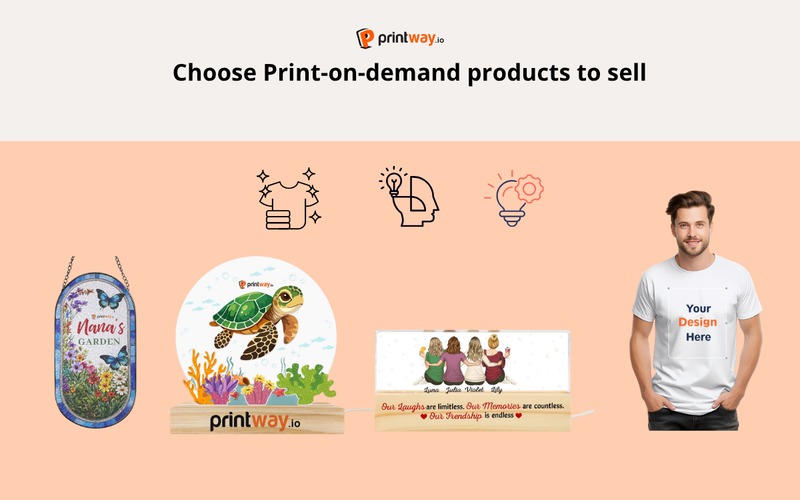
For Print-on-demand sellers, remember to choose the product with fast production time to meet the shipping requirements. Some products you can choose for TikTok are: T-shirt, Poster, Suncatcher Ornament, Stickers,...
On TikTok, content is everything. You can’t just post static product shots with “link in bio” and expect results.
Winning content formats:
Key rule:
Example:
People don’t just buy cotton and ink-they buy identity, belonging, and self‑expression. Your videos should convey that.
When learning how to sell print on demand on TikTok, choosing the right product matters just as much as your content. TikTok is a visual-first platform, so products that are easy to understand, emotionally engaging, and instantly eye-catching tend to perform best.
Below are the top-performing POD product categories-expanded with practical tips so you can actually turn views into sales.
Apparel is consistently the #1 category for TikTok POD sellers-and for good reason: it’s highly visual, easy to style, and naturally fits into short-form video content.
Best product types:
Why apparel works so well on TikTok:
Content ideas:
Pro tip: Go for bold, readable designs. If users can’t understand your design in 2–3 seconds, they’ll scroll.
Personalized products don’t just get views-they convert extremely well because they tap into emotions.
Best product types:
Why they work:
Content ideas:
These products are ideal for storytelling-something TikTok’s algorithm strongly favors.
>>> Related content: 10+ Small Business TikTok Ideas: Boost Engagement and Drive Sales with Creative Content
Home decor products perform well when paired with lifestyle or transformation content.
Best product types:
Why they work:
Content ideas:
Focus on before–after transformation-this is one of the highest-performing formats on TikTok.
If you want to scale fast, this is where the biggest opportunities are.
Best product types:
Why they work:
Content ideas:
Important: Avoid copyrighted content (movies, logos, celebrities). Focus on inspired trends, not copied ones.
No matter the category, the best products for how to sell print on demand on TikTok share these traits:
Instant clarity (understandable in 3 seconds)
Emotional trigger (funny, relatable, meaningful)
Visual appeal (stands out in feed)
Content-friendly (easy to build videos around)
Start with viral-friendly products (apparel, trending designs) to gain traction, then expand into:
Promoting print on demand on TikTok isn’t about spamming ads-it’s about making content that looks native to the For You page but quietly does the selling for you.

If you don’t grab attention in 3 seconds, people scroll.
Hook ideas:
Test multiple hooks for the same product and double down on the ones with the highest watch time.
On TikTok, speed beats perfection.
TikTok’s algorithm rewards volume and experimentation:
Once TikTok Shop is set up, use all the commerce tools you can:
Micro‑creators (a few thousand to tens of thousands of followers) often:
Send them samples or offer a commission per sale through TikTok Shop affiliate to get user‑generated content and reach new audiences.
Once you have organic videos that clearly perform (views, saves, comments, and sales), then bring in ads:
These are 6 tips for sellers on how to promote print-on-demand on Tiktok. When combined with good Print-on-demand suppliers with high-quality products and fast leading time, Sellers TikTok Shop can become a powerful sales channel.
>>> Related content: Tiktok Ads Formats - Everything you need to know
A lot of sellers fail at how to sell print on demand on TikTok not because the model doesn’t work-but because they repeat the same avoidable mistakes. TikTok plays by very different rules compared to other platforms, and small missteps can kill your reach before you even get traction.
Here are the most common mistakes-and how to fix them.

One of the biggest mistakes is applying the same content style used on Facebook or Instagram to TikTok.
What goes wrong:
What actually works:
Fix: Think like a creator, not a brand. Your goal is to blend into the feed, not stand out as an ad.
If every video is “Buy now” or “Link in bio,” your content will quickly lose reach.
What goes wrong:
TikTok prioritizes content that keeps people watching-not content that tries to sell immediately.
What actually works:
Fix: Follow the 80/20 rule:
TikTok is a trend-driven platform. If you’re not using trends, you’re missing the easiest way to get visibility.
What goes wrong:
What actually works:
Fix: Spend 15–30 minutes daily:
This is a silent killer in how to sell print on demand on TikTok.
Even if your content is good, a weak product won’t convert-or go viral.
What goes wrong:
What actually works:
Fix: Before launching a product, ask:
This is the most common reason sellers fail.
What goes wrong:
Reality: Most successful TikTok POD sellers:
What actually works:
Fix: Set a baseline:
If you want to succeed in how to sell print on demand on TikTok, avoid thinking like a traditional seller.
Instead:
Because on TikTok, the winners aren’t the ones with the best products-they’re the ones who understand how the platform actually works.
No-but TikTok Shop can significantly increase conversions because people can buy without leaving the app and you can tag products in videos and lives.
Without TikTok Shop you can still:
It depends on your niche, offers, and content quality:
Yes-as long as your POD fulfillment partner supports global shipping (US, EU, UK, etc.).
For global TikTok POD:
Right now, TikTok is one of the best platforms for beginners because the algorithm cares more about content and watch time than follower count.
If you’re willing to learn basic video storytelling, move fast on trends, and truly understand your niche, TikTok is a powerful starting point for a POD business.